 Space Time
Universe Simulator: Explore Real Astronomy Across Space and Time
Space Time is a free online universe simulator and explorer. Move through the solar system, stars and observed galaxies, then use the clock to study calculated motion. Try four examples below, each with the data, assumptions and limits behind the view.
Explore Saturn and its motion → Free · No account · No download · 3D view requires WebGL 2.0Advance the planets along their orbits
Change the date to see how planetary positions and viewing angles change. Begin with Saturn: move around its rings, then compare the same viewpoint at another date.
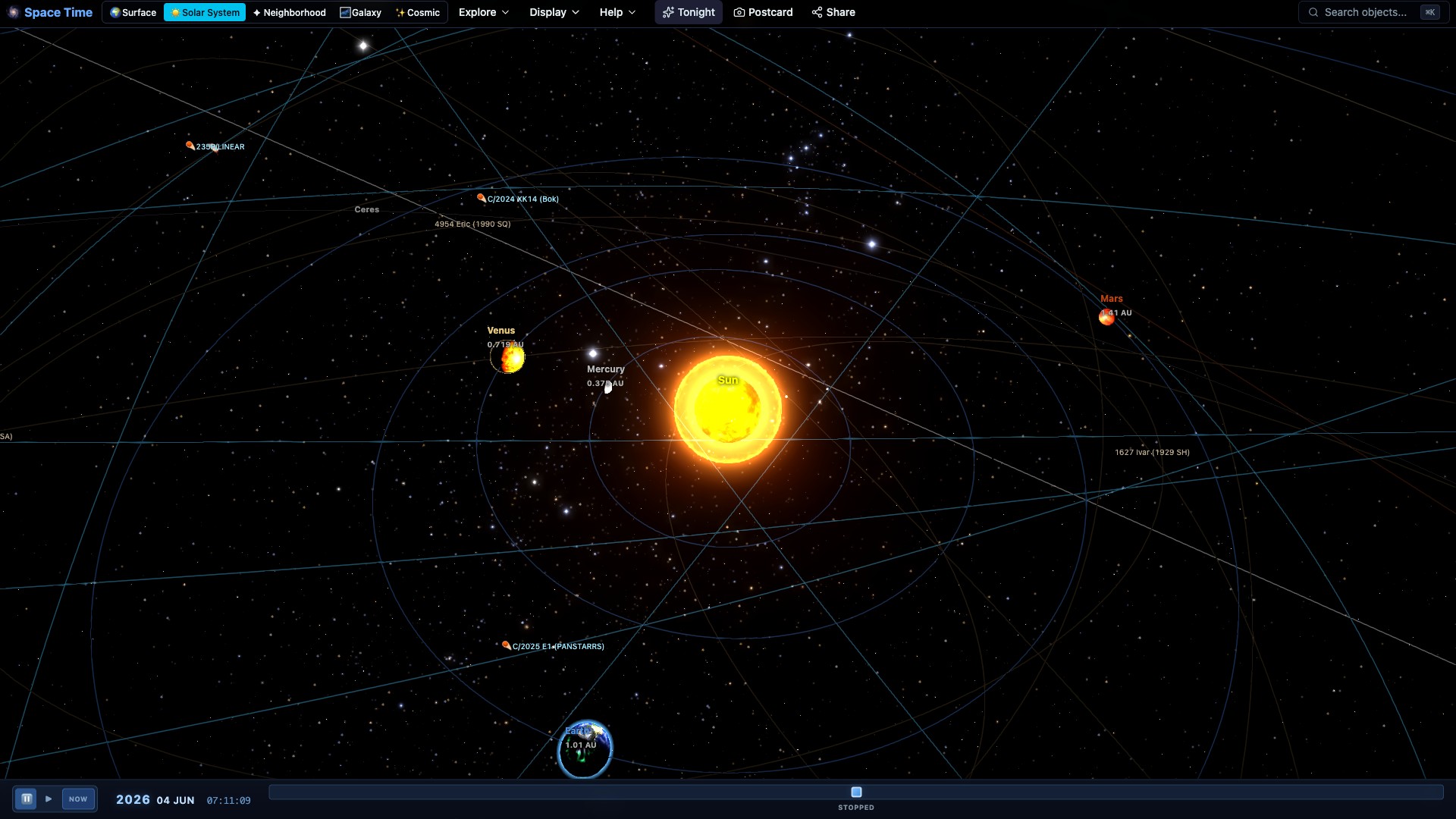
- Open the Saturn story. Orbit the planet and find the plane of its rings.
- Use the normal time controls to change the date or advance the clock. Compare the Sun’s direction and the ring viewing angle.
- Read the object’s source information. Separate its calculated position from the reference image used for its appearance.
What the calculation covers: Major planetary positions use Astronomy Engine’s ephemeris models, validated against JPL Horizons and other reference calculations. Other objects may use different orbit models; their evidence pages identify the method. These calculations describe the existing system, rather than integrating arbitrary changes to every body’s mass. Archived cloud and surface maps retain their observation dates when the clock changes.
Explore Saturn’s motion →See how measured stellar motion changes the sky
Stars have measured motions as well as positions. Open Constellations through time, move the date and compare the star pattern. The recording below shows the same catalog-motion calculation in the spatial view.
- Open Constellations through time. It opens the sky view and its stellar-time controls.
- Choose a different year and compare the stars’ directions with the starting date.
- Distinguish proper motion from Earth’s changing orientation. Check the source and time interval before interpreting a distant future view.
What the calculation covers: The spatial catalog propagates measured stellar velocities linearly. Radial velocity is used only when the catalog supplies it; a missing radial component is not inferred. This approximation helps explain catalog motion over centuries. It does not calculate stars being born, aging or exploding, or gravitational encounters over millennia.
Compare constellations through time →Replay an eclipse from a chosen viewpoint
An eclipse depends on the alignment of the Sun, Earth and Moon, and on where the observer stands. Choose an eclipse to examine its calculated geometry, then compare the event’s date and location information.
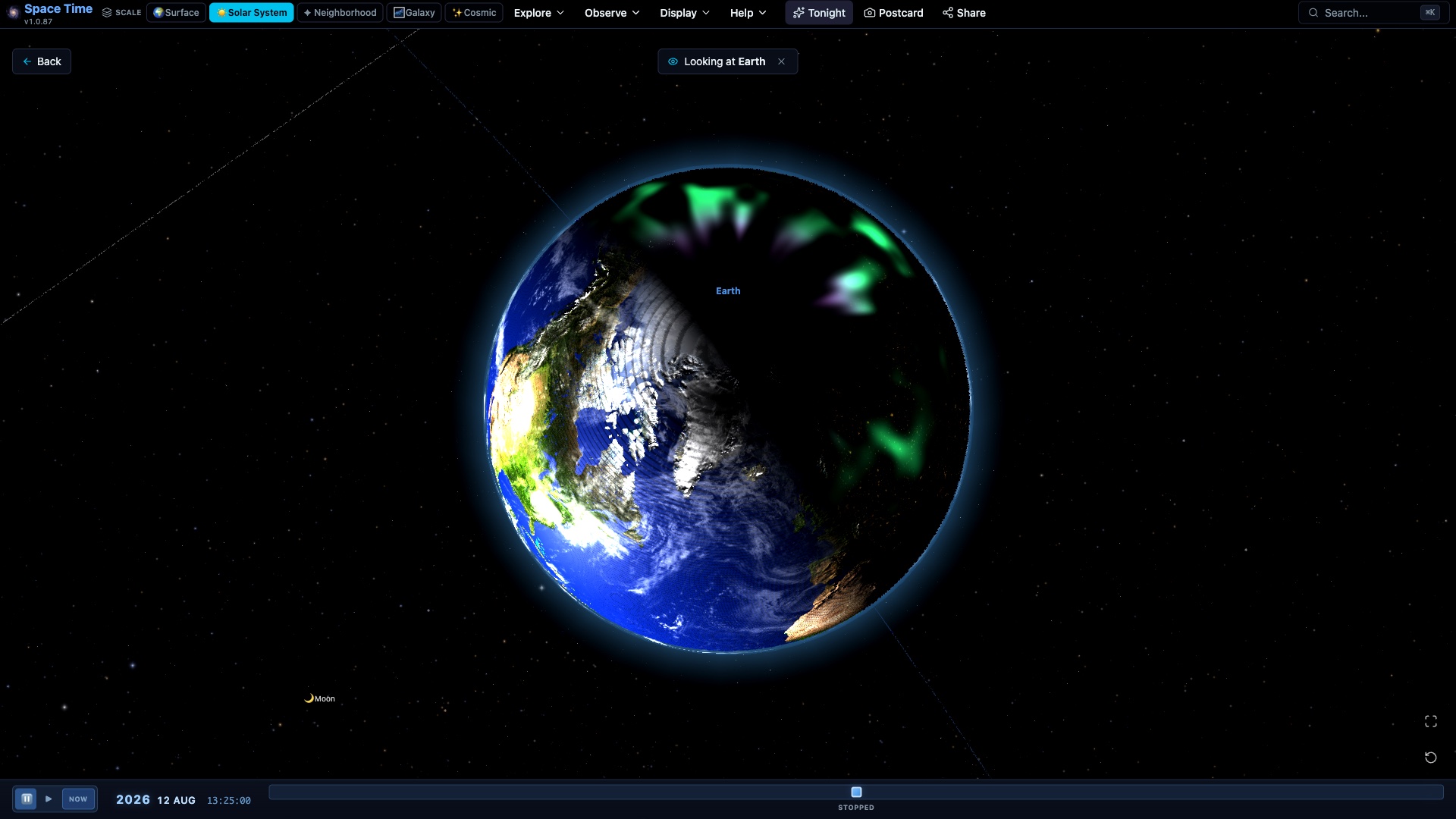
- Open Eclipses and select a dated solar or lunar event.
- Run the replay and compare the moving alignment from the available viewpoints.
- For observing from Earth, use the eclipse guide’s local circumstances. Visibility depends on your location and conditions.
What the calculation covers: Ephemerides and eclipse calculations describe positions, alignment and event circumstances. Rendered shadow color and brightness are presentation choices. Geometry alone does not predict weather or how bright an eclipse will look to a particular observer.
Choose an eclipse to replay →Compare the clocks during a relativistic journey
Select a planet and compare time at departure with time experienced by an idealized traveler. Change the travel profile to see how speed and acceleration affect the clock comparison. Nearby stars with physical distances support longer examples.
- Open the app’s ordinary space view and return Home if needed. Click a planet once to select it. A single click lets you choose a travel profile before flying; double-clicking or an atlas Visit button starts a flight immediately.
- Open its Journey controls. Choose 1g comfort or Choose speed, then press Go to.
- Compare the departure and traveler clocks. On arrival, inspect the clock comparison and the light that could have reached you from departure.
What the calculation covers: Special relativity for idealized constant-speed or continuous-acceleration travel. Fuel, propulsion, radiation and survival are not modeled, so the clock result is not an engineering feasibility claim. Playback is compressed; its duration is not the physical journey time, and the app’s astronomical date is not advanced by the trip. Beyond ten million light-years the result is labeled a static-distance thought experiment; it does not model a route through an expanding universe.
Open the app for a clock comparison →What does “universe simulator” mean here?
What can I change?
Your viewpoint, the astronomical date, time playback and the supported journey parameters. Each example explains what those controls change and which data remains fixed.
Can I create planets or simulate arbitrary collisions?
These examples explore the observed universe and supported physical calculations. They do not offer an arbitrary planet-creation or collision sandbox, or a simulation of the universe evolving from the Big Bang.
Is every view a measurement?
Positions and imagery use observations where available. Calculated motion, reconstructed depth and visual scaling are identified separately. Missing data remains missing. Read the source information and its date before drawing a conclusion from the scene.
Does it work on phones, and is it free?
The examples are free without an account and run on supported desktop, tablet and phone browsers with WebGL 2.0. Drag to change the view and pinch to zoom on touch devices. If the 3D scene cannot load, this guide and its source links remain readable.
Sources and calculation limits
- Astronomy Engine: methods, supported calculations and validation
- ESA: how Gaia measures stellar positions and motion
- Einstein Online: the travelling twins and elapsed proper time
- Space Time’s object evidence, methods and source dates
Guide by Point Dynamics. Reviewed October 4, 2026. Screenshots and recordings show the app’s models; they are not current observations.